
Online Banking Dashboard
Discover Your Dashboard
Welcome to your updated Online and Mobile Banking dashboard! We’ve refreshed the way your banking information is displayed, making it easier to view account activity, explore available services and access the features you use most.
Your dashboard is made up of different widgets designed to bring important banking information and shortcuts together in one convenient place.

Ready to get familiar with your new dashboard? Let us show you how!
Explore the guides below to learn about your widgets, explore your dashboard and make the most of your updated Online and Mobile Banking experience.
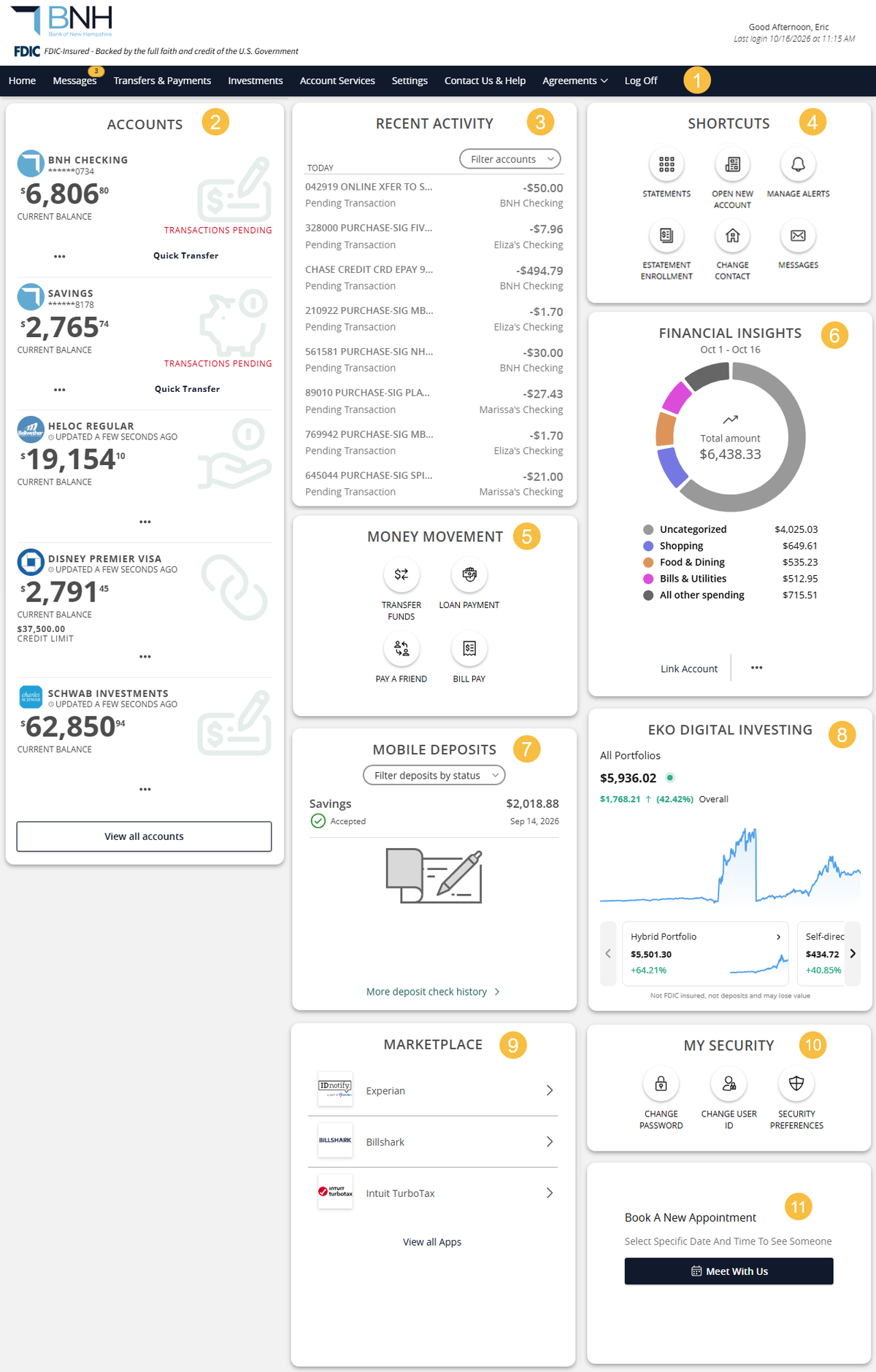
Get to Know Your Widgets

The navigation menu has moved!
The updated Navigation Menu makes it easier to access the features and tools you use most. On a computer, the navigation menu has been moved from the left side of the screen to the top, giving you more room to view your account information and dashboard.
With the Navigation Menu, you can:
- Access Key Features: Quickly navigate to Messages, Transfers & Payments, Investments, Account Services and more.
- Manage Your Account: Access Settings, Agreements and other account management tools.
- Get Help: Easily find Contact Us & Help when you need assistance.
- Enjoy More Screen Space: The top navigation design provides more room to view your information on your computer.
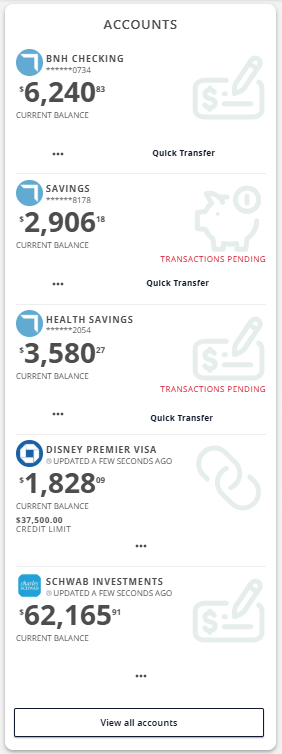
See all your accounts in one place!
Your favorite 5 internal and external accounts will display here. To view all of your accounts, click the View all Accounts button on the bottom of the widget.
The Accounts Widget gives you a convenient overview of your checking, savings, credit card and investment accounts, all right from your dashboard. Quickly view account balances, check for pending transactions and access Quick Transfer without having to navigate through multiple screens.
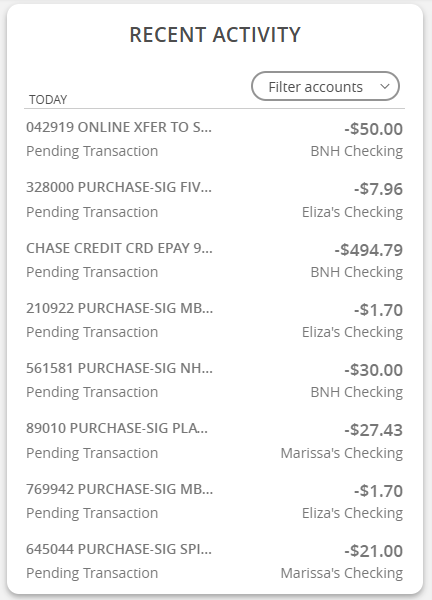
Keep track of your transactions in one place!
The Recent Activity Widget gives you a convenient view of recent transactions across all of your accounts, making it easy to stay up to date on your spending and account activity. View transaction descriptions, amounts, pending transactions and the account associated with each transaction, all right from your dashboard.
With the Recent Activity Widget, you can:
- View recent transactions across all of your accounts.
- See transaction amounts and descriptions.
- Identify pending transactions.
- Modify which accounts are included in the list by clicking the Filter Accounts link at the top of the widget.
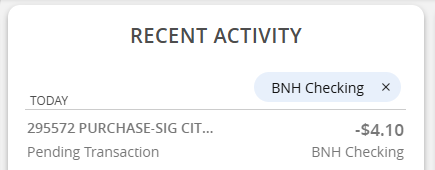
Easily keep an eye on what’s coming in and going out without having to open each account individually!
Access your favorite banking features with just a click!
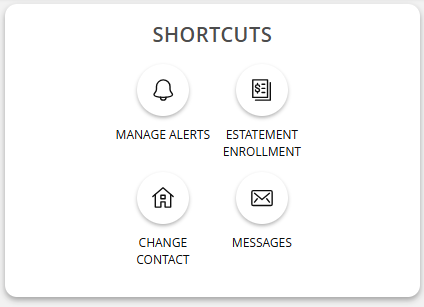
The Shortcuts Widget makes it easy to access commonly used banking features right from your dashboard. Quickly manage your account alerts, enroll in eStatements, update your contact information and view your messages without having to search through your banking menu.
With the Shortcuts Widget, you can:
- Manage Alerts: Set up and manage account notifications.
- eStatement Enrollment: Enroll in electronic statements for convenient, paperless access.
- Change Contact: Update your contact information.
- Messages: Access your secure banking messages.
Keep your most-used banking features just a click away!
Move money when and where you need it!
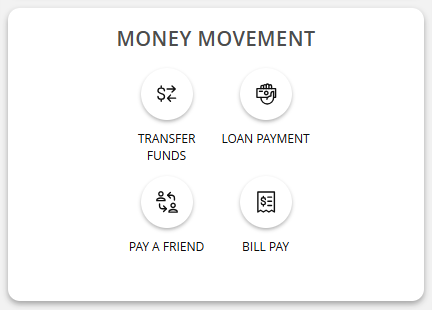
The Money Movement Widget brings your most-used payment and transfer options together in one convenient place. Whether you’re transferring funds between accounts, making a loan payment or sending money to someone else, you can quickly access these features right from your dashboard.
With the Money Movement Widget, you can:
- Transfer Funds: Move money between eligible accounts.
- Loan Payment: Make payments toward eligible loans.
- Pay a Friend: Send money to friends and family.
- Bill Pay: Manage and pay your bills conveniently.
Access your money movement options quickly and easily, all from one place
Get a bigger picture of your finances!
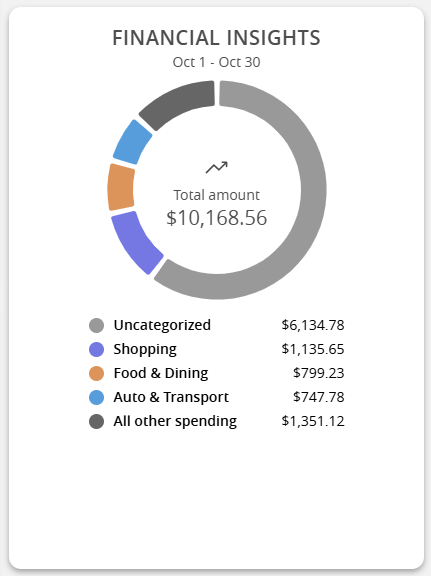
The Financial Insights Widget helps you better understand your overall financial picture by bringing your spending information together in one place. Connect eligible external financial accounts and explore helpful spending breakdowns to see where your money is going, identify spending patterns and better understand your financial habits.
With the Financial Insights Widget, you can:
- Connect External Accounts: Link eligible accounts outside of Bank of New Hampshire to get a more complete view of your finances.
- View Spending Categories: See how your spending is broken down into categories such as shopping, dining and transportation.
- Track Total Spending: View your total spending over a selected time period.
- Identify Spending Patterns: Get a visual overview of where your money goes and recognize trends in your spending.
Getting Started: If you haven’t enrolled yet, select Enroll in Financial Tools to connect eligible external accounts and get started. Once enrolled, your spending insights will appear right in your dashboard.
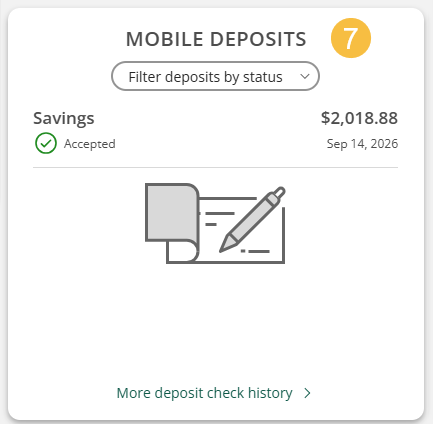
Make mobile deposits simple!
The Mobile Deposits Widget gives you a convenient way to keep track of checks you’ve deposited through Mobile Banking, right from your dashboard. View your recent deposits, check their status and access your deposit history all in one place.
With the Mobile Deposits Widget, you can:
- View Deposit Status: See whether your mobile deposits have been accepted or are still processing.
- View Deposit Details: Review the account, amount and date associated with your recent deposits.
- Track Deposit History: Easily access your previous mobile deposits for quick reference.
- Filter Deposits: Filter your deposits by status to quickly find the information you need.
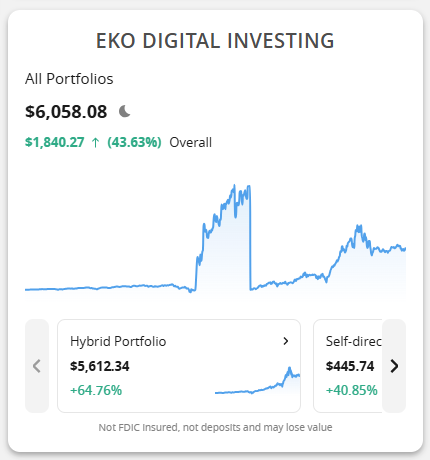
Keep an eye on your investments!
The Eko Digital Investing Widget gives you a convenient snapshot of your investment portfolios right from your dashboard. View your total portfolio value, track performance over time and explore individual portfolios to see how your investments are doing.
With the Eko Digital Investing Widget, you can:
- View Portfolio Balances: See the combined value of your investment portfolios.
- Track Performance: Monitor overall investment gains and losses.
- View Investment Trends: Explore a visual chart showing portfolio performance over time.
- Explore Individual Portfolios: View details and performance for individual portfolios, including hybrid and self-directed investments.
Keep your investments in view and stay connected to your portfolio performance, all from your dashboard.
Please note that securities and insurance products are: Not FDIC Insured, Not Bank Guaranteed, May Lose Value, Not a Deposit, Not Insured by any Government Agency.
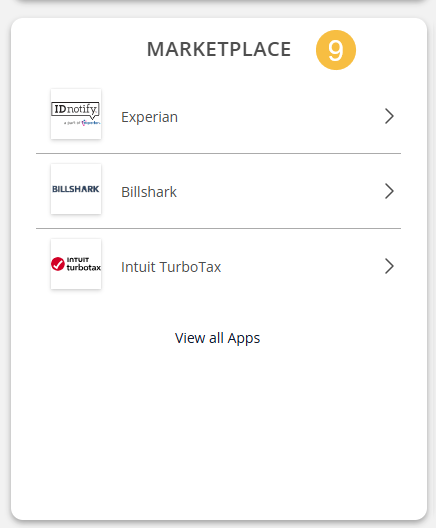
Discover helpful tools and services!
Access additional services available to our customers at an affordable cost. The Marketplace Widget gives you convenient access to a variety of third-party apps and services designed to help you manage your finances and everyday needs.
With the Marketplace Widget, you can:
View All Apps: Browse the full Marketplace to explore additional options.
Explore Featured Apps: Discover services such as Experian, Billshark and Intuit TurboTax.
Access Services: Select an app to learn more and access its available services.
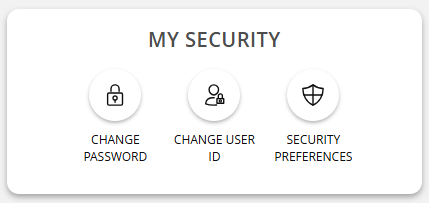
Manage your security settings in one convenient place!
The My Security Widget gives you quick access to important security settings for your Online and Mobile Banking. Easily update your login credentials and manage your security preferences right from your dashboard.
With the My Security Widget, you can:
- Change Password: Update your Online and Mobile Banking password.
- Change User ID: Update your banking login username.
- Security Preferences: Review and manage your available security settings.
Keep your banking information secure by easily accessing and managing your security settings!
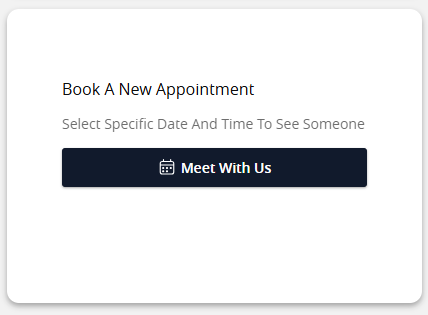
Schedule a time to meet with us!
The Book an Appointment Widget makes it easy to schedule a meeting with a Bank of New Hampshire team member at a time that works for you. Choose a specific date and time to connect with someone and get the assistance you need.
With the Book an Appointment Widget, you can:
- Schedule a Meeting: Select a date and time that works best for your schedule.
- Meet With Us: Click the Meet With Us button to view available appointment times and book your visit.
Conveniently schedule your next visit right from your dashboard!
Still not signed up?
Get Bank of New Hampshire online banking today!