Push Authentication Instructions
04/08/2026
Push Authentication offers a secure and convenient way to confirm an unregistered device. Instead of entering a one-time secure access code, you’ll receive a notification directly on your mobile device from the BNH Mobile Banking app.
Make sure you are enrolled in Online Banking and have the latest version of the BNH Mobile Banking app. Once enabled, you’ll automatically receive push notifications for authentication requests.
To enable Push Authentication:
- Log into the BNH Mobile Banking app.
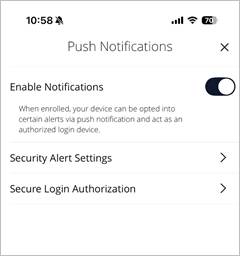
- Tap Settings > Push Notification Enrollment > Secure Login Authorization.
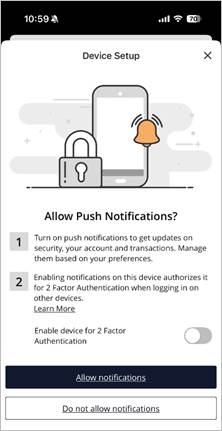
- Select the “Enable device for 2 Factor Authentication” slider and click the “Allow Push Notifications” button.
To log-in to a registered device:
- Once enabled, the “Push” option is added to the list of delivery options. Clicking the option will send the request to the registered mobile device (fig. 3).
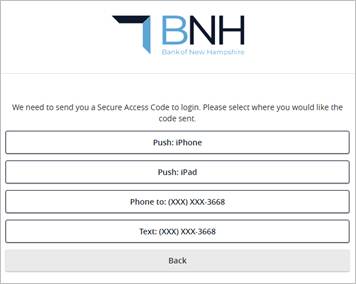
Fig. 3
- You will receive confirmation that the request has been sent (fig. 4).
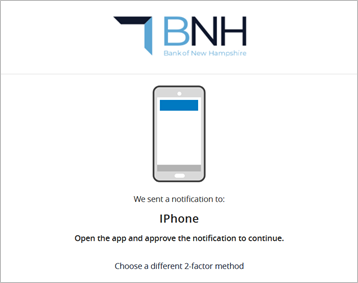
Fig. 4
- The BNH Mobile app will send a “Push Notification” to your mobile device (see fig. 5).
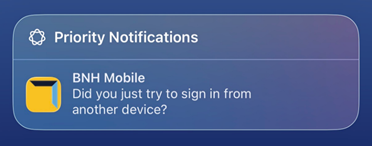
Fig. 5
- Once you click the “Push Notification,” the Verify Login screen (fig. 6) will display. Click the “Yes, it is me” button to gain access to the requested device.
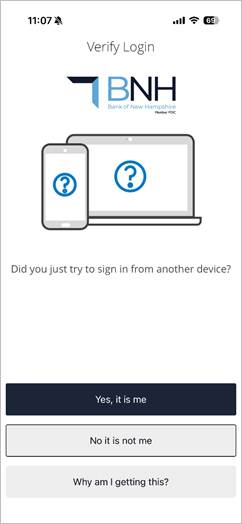
Fig. 6